Sponsors and questions
Optional extras — feature sponsors on your page and ask buyers a question or two.
These extras are optional. Skip them and your raffle works perfectly well; add them when they fit.
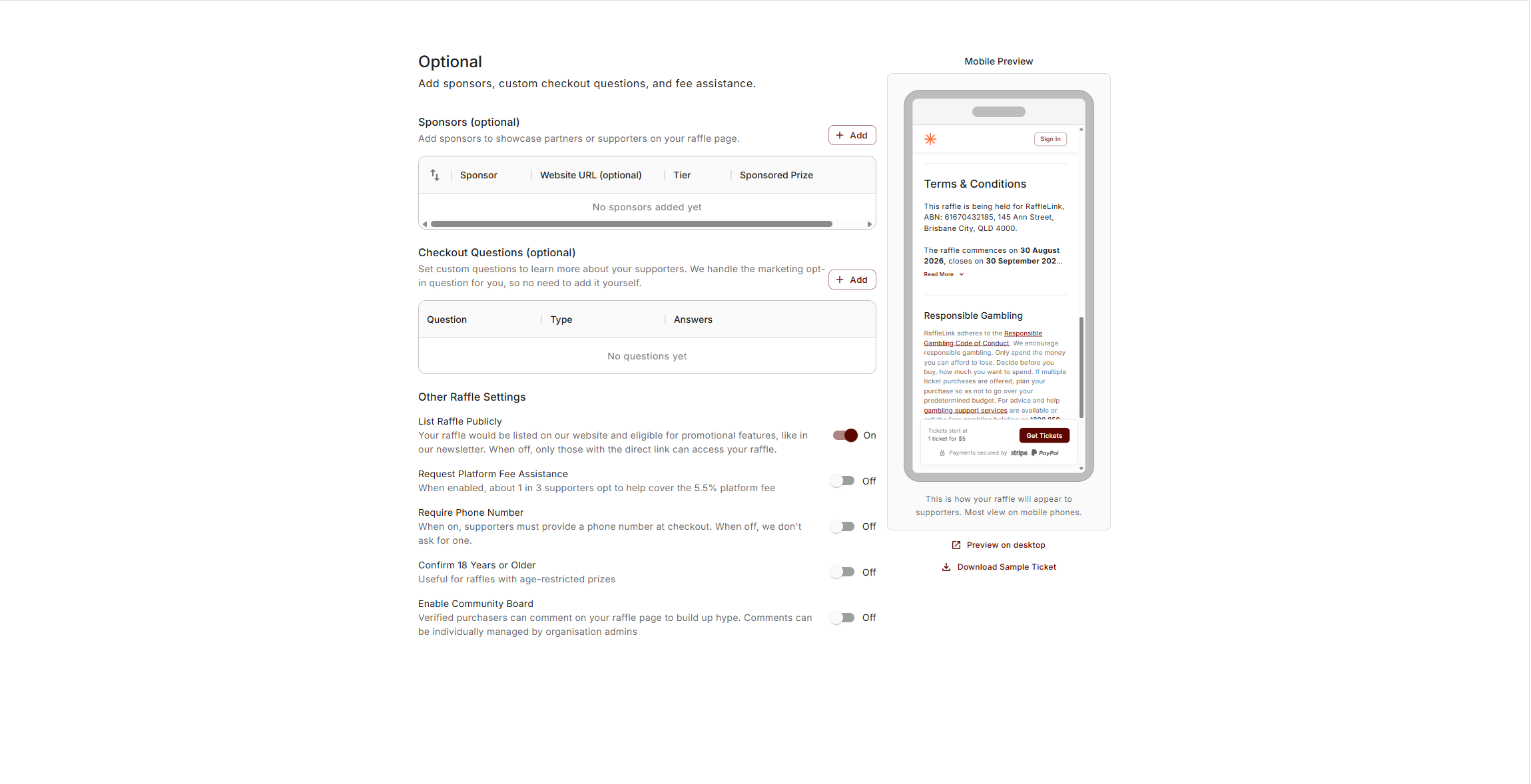
Sponsors
If local businesses or partners are backing your raffle, feature them under Sponsors (optional). It's a nice way to acknowledge support and lend your raffle extra credibility — and it's no longer just logos on the page.
Choosing Add opens a picker of your organisation's saved sponsors (from the org-level Sponsorship page); pick one and its details prefill, or use Add new sponsor for a one-off. Each sponsor can carry a tier — Gold, Silver, or Bronze — which sets how prominently they appear and whether they're also featured in purchase confirmation emails and on ticket PDFs. You can also link a sponsor to a Sponsored Prize, which shows "Sponsored by [name]" under that prize on your raffle page.
The full tier breakdown, the reusable sponsor list, and the downloadable sponsorship PDF are covered in Sponsorship. (The saved-sponsor picker is admin-only; affiliates and independent organisers add sponsors directly to the raffle.)
Custom questions
You can ask ticket buyers a question or two at checkout — for example, a membership number, a preferred pickup location, or a meal choice for a fundraising dinner. Keep them to what you genuinely need; every extra question is a little more friction on the way to a sale. You can add up to two: one Dropdown (the buyer picks from a list you set) and one Short Answer (they type a short reply). You choose whether each is required.
Follow-up questions
A Dropdown question can have follow-up questions — a second question that only appears when the buyer picks a particular option. The classic example: ask which school someone's supporting, then, only if they pick a specific school, ask for their class.
On a dropdown question, each option gets an Add follow-up for "[option]" button. Open it and you'll build a second dropdown the same way, under the heading When "[option]" is selected, ask:. A follow-up can be marked Required when shown — meaning it's only required if the buyer actually picks the option that reveals it, never when they choose something else. At checkout, the follow-up stays hidden until its option is selected, and clears itself if the buyer changes their mind.
Import a long list of options from a CSV
If a dropdown has a lot of options — every school in a district, say — you don't have to type them in one by one. Use Import CSV on the question (or on a follow-up) to bring them in from a spreadsheet. It opens the same Import options from CSV window used elsewhere: download the template, fill in one Option per row, and upload. RaffleLink previews every row, skips any that duplicate options you already have, and adds the rest. You can edit up to 100 options per question in the portal; if you need a longer list than that, contact support and we can load it for you.
Other Raffle Settings
The Optional step finishes with an Other Raffle Settings block — six switches that apply to the whole raffle:
- List Raffle Publicly — show your raffle in RaffleLink's public directory so buyers browsing for a cause can find it. Switch it off and only people with your link can reach it.
- Request Platform Fee Assistance — give buyers the option to chip in toward the platform fee. See Fee Assistance.
- Require Phone Number — collect a phone number with every order, handy for reaching winners quickly.
- Confirm 18 Years or Older — ask buyers to confirm they're over 18. This switches on (and locks) automatically if your raffle has an alcohol prize.
- Enable Community Board — let your ticket buyers leave public messages of support on your raffle page. See Community Board.
- Winners choose their prize — for raffles where winners pick from the prize table on the night rather than being assigned a specific prize. "The draw decides the order winners pick in. Results and emails will show each winner's draw position instead of a specific prize." See below.
When winners choose their own prize
Lots of raffles work the other way round to the prize list: you draw a name, that person walks up and picks whatever they like off the table, then you draw the next. Winners choose their prize tells RaffleLink that's how yours runs.
Switch it on and the language changes to match. On your draw page the rows read 1st pick, 2nd pick and so on instead of naming a prize, and a settled winner shows as "Drawn 1st, chooses first". Your winner table, the results PDF and the draw emails swap the Prize Tier and Prize Title columns for Draw Position and Listed Prize. Your results note explains it to everyone reading: "Winners chose their prize on the night in the order drawn."
Two things worth knowing:
- It doesn't change the draw. The draw runs exactly as it always does, and it's what decides the order people pick in. This is about how the result is described, not how it's decided.
- RaffleLink doesn't record which prize each winner walked away with. That's yours to note down on the night. It also means the prize order on your list is presentation only — the Prizes step will tell you so rather than nagging you about draw order.
It's available on standard raffles (not 50/50), it's free to change while the raffle is live, and it locks once the main draw has run: "Locked: the draw has already run."
Looking for Ticket Booth? In-person selling is switched on from the Tickets step, under Sales Method — see Enable the booth on a raffle.
Next: Preview and activate.