See all your tickets in one place
Create a free RaffleLink account (optional) to see every raffle you've entered — tickets, draw dates, and results — together.
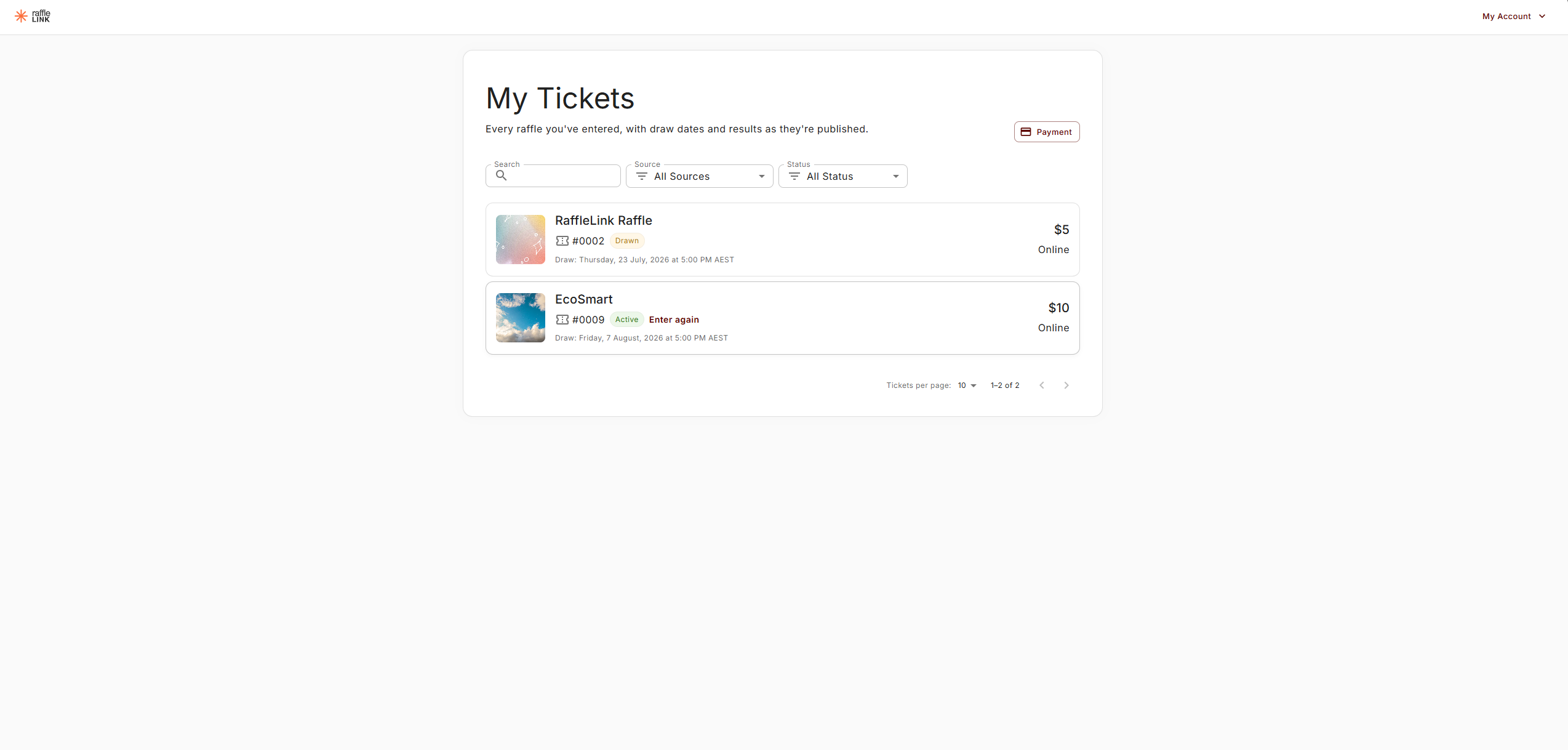
You never need an account to buy a ticket or find it later — your confirmation email is always enough. But if you enter raffles more than once in a while, a free RaffleLink account gathers them all into one place: a My Tickets page showing every raffle you've entered, with each draw date and result.
Nothing changes about your tickets — they're already issued and in the draw. An account is just a single view across raffles, instead of hunting back through your emails.
Signing in — no password
RaffleLink accounts use a one-time link, so there's nothing to remember.
Choose Log in in the top corner of any raffle page (or take the prompt you'll see after a purchase).
Enter the email you buy tickets with, and choose Email me a sign-in link.
Open the link from your inbox on the same device — you're signed straight in. The link works once and expires after an hour.
Your account is keyed to your email, so it automatically pulls together every raffle you've entered with that address — past and future.
What My Tickets shows
Every purchase you've made shows as its own row — the raffle's banner, your first ticket number, what you paid, and how you paid (Online, or a booth method). Buy into the same raffle twice and you'll see both rows. Tap a row to open its full order page with all your ticket numbers.
Each row carries a status:
- Active — bought, waiting for the draw.
- Drawn — the draw has happened; results are being finalised.
- Published — the results are up.
- Won — one of your tickets came up. 🎉
- Cancelled — the raffle was cancelled (and you've been refunded).
If a raffle is still open, Enter again sits on the row — a shortcut straight back to buying more tickets in that raffle.
Once you've entered a few raffles, a Search box and Source and Status filters help you find one quickly, and longer lists page through. When you're done, Sign out sits at the top of the page.
After you buy
When you finish a purchase, you'll see a gentle nudge to "see all your raffles in one place." Take it or leave it — your tickets are exactly the same either way. If you already have an account for that email, it recognises it and offers Log in instead.
Good to know
- Accounts are optional. Guest checkout is unchanged, and you can always get back to a single raffle through its confirmation-email link.
- One email, one view. If you buy with more than one email address, each has its own My Tickets — use the one you actually check.
- Already sign in as an organiser? You can still open My Tickets with the same login; you may just be asked to verify your email first.
- Save a card for next time. My Tickets has a Payment section where you can save a card, so your next raffle entry is one tap. See Saving a card for next time.