Draw by hand (hat draws)
Pull your winners from a hat at an event and record them yourself — kept compliant and audit-ready.
Some organisers don't want RaffleLink to pick the winners — they want the moment: pulling tickets from a barrel at the event, reading out the names. RaffleLink supports that. You choose how your raffle draws, and for a hand-drawn ("hat") method you enter each winner yourself, so the result is still recorded, compliant, and published like any other.
Choosing how you'll draw
Your raffle has a draw method, set on the Draw & Timeline tab. What's on offer depends on whether you sell paper tickets:
Online-only raffles:
- Instant Draw — RaffleLink picks the winners for you, the moment you draw. Best when you don't need a show, just something fast and fair. (See Run the draw.)
- Hat Draw — print copies of your tickets, pull winners by hand, and enter the details here.
Paper-enabled raffles (you also sell paper tickets):
- Hybrid Draw — RaffleLink runs a fair draw across both ticket types; if a paper ticket wins, you pull that stub. (See Run a hybrid draw.)
- Combined Hat Draw — print copies of your digital tickets, combine them with your paper stubs, and pull from a single barrel by hand.
New raffles start on Instant (or Hybrid if you sell paper). To switch, choose Change on the draw method and pick another in the Change Draw Method dialog. Each method's card explains what to expect before, during, and after the draw.
You can change the method until you draw
Pick or change your method any time before the draw — then it locks once the draw starts, so the result can't be quietly re-run. (Early bird draws are always instant and don't affect this.)
This page covers the two hat methods (Hat and Combined Hat), where you enter every winner yourself.
Print stubs for the barrel
A hat draw needs physical copies of your digital tickets to go in the barrel alongside any paper ones. On the Tickets page, Print stubs for the draw opens Print digital ticket stubs — choose how many stubs per page (9, 12, or 15), whether to add border cut lines, and Download. If you've also printed paper tickets, RaffleLink suggests a stub size that matches them, so every ticket in the barrel is the same size for a fair pull.
Over 600 stubs? RaffleLink prepares them as several PDF files in the background — the button reads Generate stub files, and you can close the window while it works. We'll email you when they're ready, and the link brings you back to download them (files are kept for 7 days). If your sales change afterwards, generate a fresh set.
Print the stubs before your event — this is what makes the draw fair
Your online tickets exist only in RaffleLink until you print them. If they never make it into the barrel, the supporters who bought online paid for a chance they didn't get — and that's a fairness problem you can't fix after the prizes are handed out. Print the stubs (or run a witnessed random draw across every ticket number, and write the winning numbers down) before the event.
RaffleLink will stop you if the stubs aren't printed
This isn't just advice any more. If you go to run a hat or combined hat draw and you've sold online tickets but never printed a stub run, the draw is blocked and you'll see why:
"This raffle has [n] online tickets that exist only in the system — no digital ticket stubs have been printed, so a physical draw has no way to include those buyers. Print the digital ticket stubs first, or confirm in the draw dialog that every online ticket will still be in the draw."
The draw dialog carries the same warning and a tick-box you must complete before the confirm button becomes available:
"I confirm every online ticket will be included in the draw — for example printed stubs, or a witnessed random draw across all ticket numbers with the winning numbers written down."
So you have two honest routes: print the stubs, or genuinely include the online numbers another way and confirm you've done it. Start Winner Entry stays greyed out until the box is ticked, and you'll need to tick it each time you attempt the draw — it doesn't stick from a previous attempt.
This applies to Hat and Combined Hat only. A hybrid draw isn't affected, because RaffleLink draws across the whole pool itself and you only enter the paper winners.
Run the draw and enter the winners
A hat method never chooses for you. The confirm dialog is titled Start Your Hat Draw, and it says so plainly: "This won't run an automated draw — you pull the winners yourself." Confirming locks in your Final Ticket Count (shown as Paper, Digital, and Total before you start — if the paper figure looks out of date, log any last sales first) and opens winner entry.
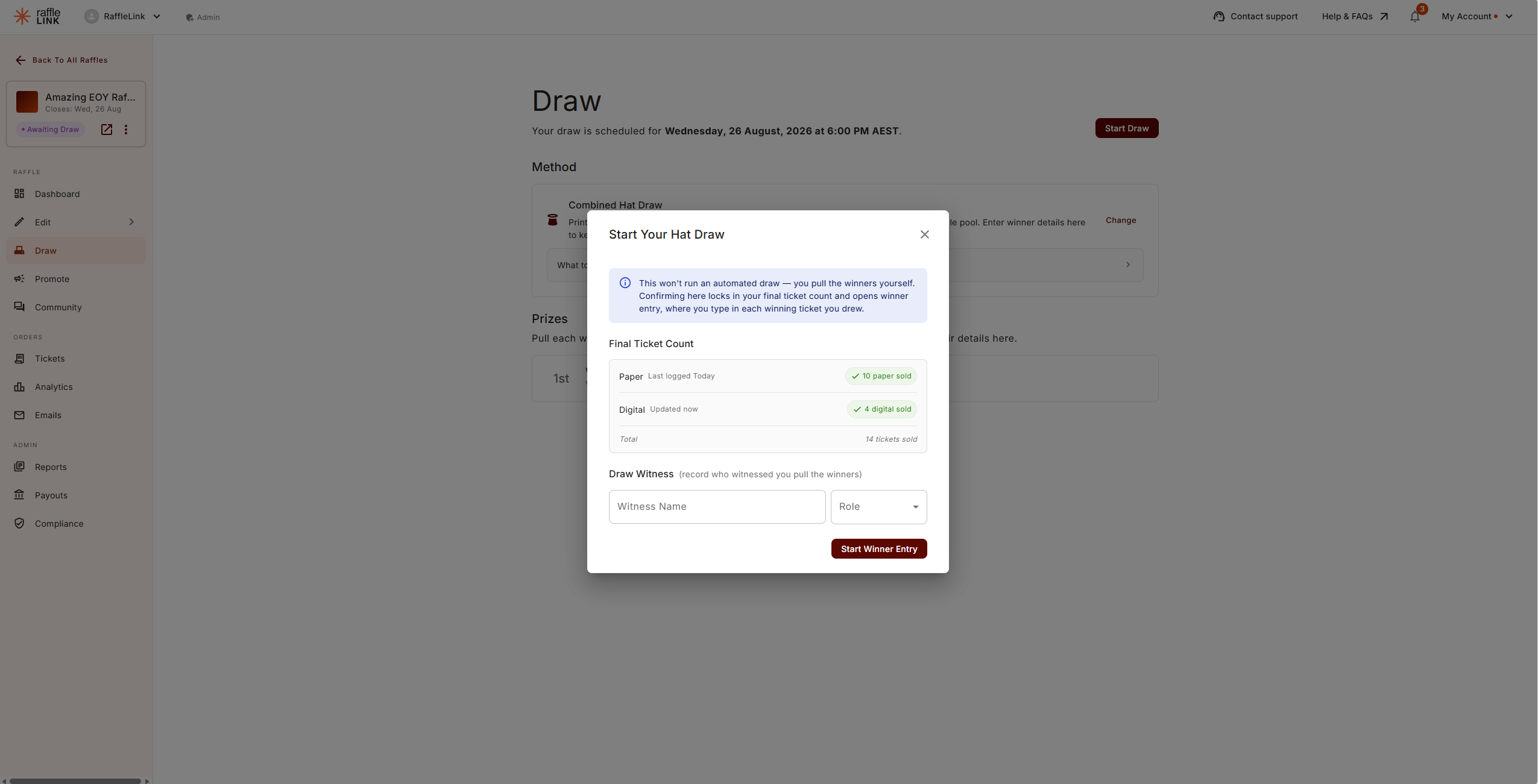
From there, choose Enter Winner on your first prize to open the entry window; after each save, Save & Enter Next Winner walks you through the rest.
For each prize:
Pull a ticket from the barrel and type its number into Ticket Number.
If it's one of your digital tickets, RaffleLink recognises it — "Digital ticket number recognised — held by [name]." Choose Import contact details to fill the winner in automatically.
On a Combined Hat draw, a paper stub won't match a digital ticket — enter the winner's Name and Email yourself. On a plain Hat draw (digital tickets only), an unrecognised number is refused instead: "No active digital ticket matched that number. Only purchased digital tickets can win this draw — check the number and try again."
Choose Save & Enter Next Winner to move on. On the final prize the button reads Save & Finalise Results.
Each winning ticket is set aside before the next prize, so no one wins the same draw twice.
Fixing a data-entry mistake
Mis-typed a number or name? Open Modify Winner on that prize — but only while that draw's winners haven't been notified or published yet. You'll see a clear warning:
Modify is for correcting mistakes only
"Altering draw results is illegal. You may only modify if you made a data entry error." Use it to fix a genuine typo, nothing else — RaffleLink records the change. Once you've notified or published the winners, the result is locked.
From here, publish the results as normal. Emailing your winners is optional, and works before or after publishing.
Drew in person without recording the winners?
Please don't end up here
This is the hardest raffle situation to untangle after the fact — and the easiest to avoid. Before your event: print the stubs, or if you're drawing another way (say, a random number generator across every ticket number), have someone write each winning number down as it's drawn, in front of your witnesses. Thirty seconds with a pen protects your whole result.
If it's already happened — the draw was done at the event, the prizes went home with the winners, and nobody kept the numbers — the money isn't lost, but there's a formal process before it can move. Two things to know straight away:
- Your payout waits for the winner entries. The draw isn't complete in RaffleLink — and your payout can't be released — until every prize has its winning ticket recorded.
- Don't guess a ticket number to get past the entry screen. A typed number that happens to match a sold online ticket records that buyer as the winner — someone who may not have won anything. Guessed entries also undermine the record you'll need below.
Stop there, and email support@rafflelink.com. Because a raffle's result has to stand up to scrutiny — yours, ours, your supporters', and if it comes to it your state regulator's — we'll ask you to help reconstruct the draw properly:
- A written account of the draw. When and where it happened, who pulled the tickets, and exactly how it was done — a hat, a number generator, names from a list. Most importantly: how your online buyers were included. Their tickets only exist in RaffleLink, so we need to understand what represented them in the draw.
- Witnesses. Names (and roles, e.g. committee member, parent, volunteer) of people who saw the draw happen.
- Any records at all. Photos or video from the event, numbers jotted anywhere, a social media post announcing winners — partial records still help.
- Your best-effort winners list. A name against each prize. "Unknown — collected at the draw" is acceptable for the ones nobody remembers.
- A signed statement. Two committee members (typically your president and treasurer) confirming the account is accurate. For larger raffles we may ask for a statutory declaration.
- Publish the reconstructed winners wherever your raffle terms said winners would be announced — with a line inviting anyone to contact you if something looks wrong. Your supporters, especially the online buyers who weren't in the room, deserve the chance to check.
Once that's together, RaffleLink staff record the winners on your behalf — flagged in the raffle's audit log as reconstructed, so the record is honest about how it was made — and the payout is released as normal (your bank account must be verified too, if it isn't already).
One honest caveat: this process can document a fair draw after the fact, but it can't repair an unfair one. If it turns out the online tickets were never in the draw at all, those supporters paid for a chance they didn't get — and that usually means refunding them rather than paying out. It's exactly why the warning at the top of this section matters.