Invite teammates
Adding people to your organisation by email, or with an access code.
You invite teammates from your organisation's Settings → Team Members → Invite teammates. There are two ways to bring someone in, on two tabs.
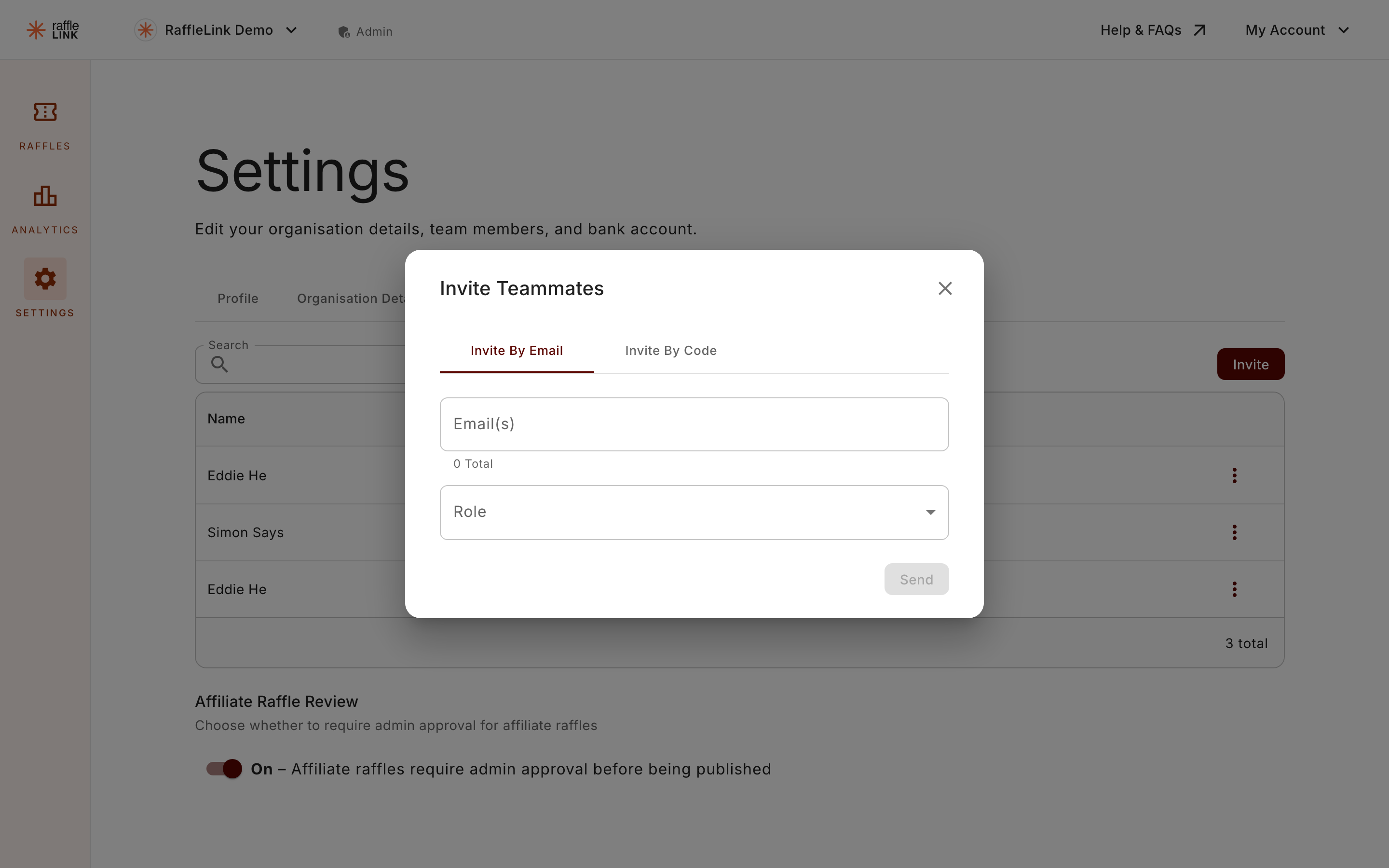
Invite by email
The standard way. On the Invite By Email tab:
- Type one or more email addresses (press Tab, Enter, or comma after each — you can add several at once).
- Pick the role for these invitees from the dropdown. The dropdown describes what each role can do, so you can choose with confidence.
- Send the invitations.
If you pick Ticket Seller, a Limit to raffles (optional) field appears so you can restrict which raffles they sell for. Leave it empty to let them sell for every raffle. See Add a Ticket Seller to your team.
Each person gets an invitation email. When they accept, they join your organisation with the role you chose. (If they already have a RaffleLink account, they'll also see a prompt to join next time they sign in.)
This is how you add Admins and Readers — by email, one role at a time. Affiliates and Ticket Sellers can join this way too, or with a code (below).
Invite by code
On the Invite By Code tab you'll find a standing access code — one for the Affiliate role and one for the Ticket Seller role. Anyone you share a code with can use it to join your organisation themselves in that role — handy when you're bringing on a group (a fundraising drive, or a team of booth volunteers for an event) and don't want to email each one individually.
- Copy a code to share it.
- Reset it any time — the old code stops working, so you can cut off access if a code's been shared too widely.
Only affiliates and sellers have a code
Access codes cover the Affiliate and Ticket Seller roles — the two where you often onboard a batch of people at once. Admins and Readers join by email invite only, so those higher-trust roles stay deliberately controlled rather than open to anyone with a code.
Which method to use
- One or a few specific people → invite by email with the exact role.
- A batch of affiliates or sellers (a fundraising drive, or booth volunteers for an event) → share the matching access code.
Affiliates and independent organisers don't use this dialog for their own helpers: they invite ticket sellers from their SELLERS page instead. See Add a Ticket Seller to your team.